Contacts
Editing contacts is currently only available to administrators via Main Menu -> Contacts Please note that some transports are only available in the Subscription editions
Overview
Observium supports a wide range of notification transports to deliver alerts through your preferred communication channels. This document covers configuration and setup for all available transports.
Default Behavior
By default Observium will attempt to email alerts to the sysContact retrieved from the device via SNMP. If a default email contact has been configured, this will be used for all devices instead.
These settings can also be found in the "Alerting" section of the web configuration interface.

Where a contact has been associated to an Alert Check or Syslog Rule, this will be used instead of the default or sysContact entries.
Email & Core Transports
The E-mail notification transport requires only an email field and uses the email settings configured in the config.php. E-mail is used as the default transport when none others apply to the alert. Please see the Default section.
We recommend using a local MTA on the Observium server itself rather than using SMTP. Postfix is easily installed for this purpose on Ubuntu/Debian with apt-get install postfix
Subject line can be customised using the optional template field in the transport configuration. Subject templates use {{TAG}} syntax and default to TITLE when left empty.
Inline graphs are embedded in HTML mail only when graphs are available for the alert and $config['email']['graphs'] is enabled.
Script
Observium can export alert and recovery events via a simple external script interface. Variables are exported via environment variables.
All generated message tags are exported as OBSERVIUM_<TAG>. The table below lists common tags; transport-specific and newer tags (for example OBSERVIUM_DEVICE_GROUP_NAMES and OBSERVIUM_DEVICE_GROUP_IDS) are also exported when present.
Some variables are only available for specific alert sources.
| Environment Variable | Description | Example |
|---|---|---|
| OBSERVIUM_ALERT_STATE | Named State | ALERT, ALERT REMINDER, RECOVER, SYSLOG |
| OBSERVIUM_ALERT_STATE_NAME | Configurable State Name | Same as STATE, but can be configured in $config['alerts']['status_name'] |
| OBSERVIUM_ALERT_STATUS | Numeric Status | 0 - ALERT (syslog currently also uses 0), 1 - RECOVERY, 2 - DELAYED, 3 - SUPPRESSED |
| OBSERVIUM_ALERT_STATUS_CUSTOM | Configurable Status | Same as STATUS, but can be configured in $config['alerts']['status'] |
| OBSERVIUM_ALERT_SEVERITY | Severity Name | Critical, Warning, Informational |
| OBSERVIUM_ALERT_URL | URL to Alert Entry | https://observium.test/device/device=344/tab=alert/alert_entry=9827/ |
| OBSERVIUM_ALERT_ID | alert_id |
9827 |
| OBSERVIUM_ALERT_NAME | Configured alert name | |
| OBSERVIUM_ALERT_MESSAGE | Configured alert message | Configuration Changed |
| OBSERVIUM_ALERT_UNIXTIME | Alert unixtime | 1600532824 |
| OBSERVIUM_ALERT_TIMESTAMP | Alert timestamp | 2020-09-19 19:27:04 +03:00 |
| OBSERVIUM_ALERT_TIMESTAMP_RFC2822 | Alert timestamp RFC2822 | Sat, 19 Sep 2020 19:27:04 +0300 |
| OBSERVIUM_ALERT_TIMESTAMP_RFC3339 | Alert timestamp RFC3339 | 2020-09-19T19:27:04+03:00 |
| OBSERVIUM_CONDITIONS | Checker conditions or Syslog rule | ifInOctets_perc ge 85 |
| OBSERVIUM_METRICS | Checked metrics or Syslog message | device_status = 0 |
| OBSERVIUM_DURATION | Alert duration | 4m 29s (2020-09-19 19:22:35) |
| OBSERVIUM_SYSLOG_RULE | Syslog rule Syslog Only |
/SYS-5-CONFIG_I/ |
| OBSERVIUM_SYSLOG_MESSAGE | Syslog message Syslog Only |
Configured from console by derp on vty0 (95.21.0.21) |
| OBSERVIUM_SYSLOG_PROGRAM | Syslog program Syslog Only |
SYS-5-CONFIG_I |
| OBSERVIUM_ENTITY_URL | URL to entity page Not Syslog |
https://observium.test/device/device=344/ |
| OBSERVIUM_ENTITY_LINK | Link to entity page Not Syslog |
<a href=\"https://observium.test/device/device=344/\" class=\"entity-popup red\" data-eid=\"344\" data-etype=\"device\">cyberpower-pdu</a> |
| OBSERVIUM_ENTITY_ID | Entity id Not Syslog |
344 |
| OBSERVIUM_ENTITY_NAME | Entity name Not Syslog |
eth0 |
| OBSERVIUM_ENTITY_TYPE | Entity type Not Syslog |
port |
| OBSERVIUM_ENTITY_DESCRIPTION | Entity description (ifAlias, etc) Not Syslog |
Transit: Level 3 |
| OBSERVIUM_DEVICE_ID | Device id | 344 |
| OBSERVIUM_DEVICE_HOSTNAME | Device hostname | test.observium.org |
| OBSERVIUM_DEVICE_SYSNAME | Device sysName | test |
| OBSERVIUM_DEVICE_DESCRIPTION | Device description | `` |
| OBSERVIUM_DEVICE_URL | URL to device page | https://observium.test/device/device=344/ |
| OBSERVIUM_DEVICE_LINK | Link to device page | <a href=\"https://observium.test/device/device=344/\" class=\"entity-popup red\" data-eid=\"344\" data-etype=\"device\">cyberpower-pdu.test</a> |
| OBSERVIUM_DEVICE_HARDWARE | Device "hardware" field | CISCO7676-S |
| OBSERVIUM_DEVICE_OS | Device "OS" with version | Cisco IOS 15.3(3)S4 |
| OBSERVIUM_DEVICE_TYPE | Device type | network |
| OBSERVIUM_DEVICE_LOCATION | Device location | London, UK |
| OBSERVIUM_DEVICE_UPTIME | Device uptime | 245 days, 3h 33m 6s |
| OBSERVIUM_DEVICE_REBOOTED | Device rebooted timestamp | 2020-09-19 12:23:53 |
| OBSERVIUM_TITLE | Email subject / SMS alert format | SYSLOG: [test.observium.org] Configuration changed |
Cloud & Enterprise Platforms
AWS SNS Subscription
Amazon SNS is a fully managed pub/sub messaging service that enables reliable notification delivery at scale. The AWS SNS transport integrates directly with AWS using API v4 signature authentication.
Configuration
Required Fields:
- Topic ARN: The SNS topic ARN (e.g., arn:aws:sns:us-east-1:123456789012:observium-alerts)
- AWS Region: The AWS region hosting your SNS topic (e.g., us-east-1, eu-west-1)
Optional Fields: - Subject: Custom subject line for email endpoints (defaults to alert title)
Global Settings: - AWS Access Key ID: Explicit credentials (leave empty for IAM role/environment variables) - AWS Secret Access Key: Explicit credentials (leave empty for IAM role/environment variables)
Authentication Methods
- IAM Role (Recommended): Attach an IAM role to your EC2 instance with SNS publish permissions
- Environment Variables: Set
AWS_ACCESS_KEY_IDandAWS_SECRET_ACCESS_KEY - Explicit Credentials: Configure access key and secret key directly in the transport
Features
- Message Attributes: Includes AlertState, DeviceHostname, EntityType for SNS filtering
- Rich Messages: Device details, metrics, conditions, and direct links
- Multi-Region Support: Works with all AWS regions
- Secure Authentication: Full AWS API v4 signature implementation
Example SNS Policy
| JSON | |
|---|---|
Microsoft Teams Subscription
For use Microsoft Teams transport you need Create Incoming Webhook for your Teams Channel (please read official documentation by link).
After creating Incoming Webhook, copy the link and paste it into Webhook URL field:

Example of Microsoft Teams notifications:

Microsoft Teams (Adaptive Cards via Power Automate) Subscription
This advanced Microsoft Teams integration delivers rich, interactive notifications using Adaptive Cards through Power Automate Flow. Provides much richer formatting and interactivity compared to the basic webhook integration.
Configuration: - Flow Trigger URL: Power Automate HTTP trigger URL from your Flow
Setup Steps: 1. Create a new Flow in Power Automate 2. Add an HTTP Request trigger 3. Configure the Flow to post to your Teams channel 4. Copy the HTTP POST URL to the transport configuration
Features interactive cards with buttons, facts tables, and rich formatting for enhanced alert visibility.
Team Collaboration Platforms
Discord Subscription
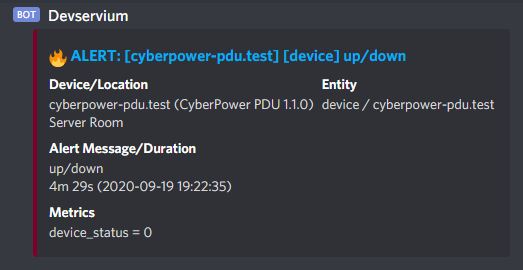
Discord is a communications platform. Integrations are configured via the Server Settings menu, in the Integrations section. New webhooks can be added via the "Webhooks" option. Configure the Name and Channel to be used, and click the "Copy Webhook URL" and paste this URL into the Observium Transport configuration section.
Google Chat Subscription
Google Chat is Google's business messaging platform, included with Google Workspace. Observium sends messages to Google Chat using the Spaces webhook API.
Configuration
Required Fields:
- Webhook URL: Google Chat webhook URL (e.g., https://chat.googleapis.com/v1/spaces/ZZZ/messages?key=yyy&token=xxx)
Optional Fields:
- Message formatting: Choose between Simple (text) or Card (rich card format with buttons)
Setup Steps
- Open the Google Chat space where you want notifications
- Click the space name at the top, then Manage webhooks
- Click Add webhook, set a name (e.g., "Observium"), and click Save
- Copy the webhook URL and paste it into the Observium transport configuration
Slack Subscription
Slack is an enterprise group chat platform. Observium uses the Slack webhooks API to send notifications.

To use Slack integration you need to obtain a Webhook URL from Slack by creating an incoming webhook integration. You also need to set a Channel Name and a Username for your Observium messages.

Rocket.Chat
Observium provides two Rocket.Chat integration methods:
Rocket.Chat (API)
Uses the Rocket.Chat REST API for direct message posting.
Global Settings:
- Base URL: Your Rocket.Chat server URL (e.g., http://localhost:3000/)
- Channel: Target channel (default: #general)
Required Fields: - Personal Token: Authentication token from your Rocket.Chat profile - User Id: Your Rocket.Chat user ID
Rocket.Chat (Webhook)
Uses Rocket.Chat incoming webhooks for simpler setup.
Global Settings:
- Webhook URL: Incoming webhook URL from Rocket.Chat (e.g., https://my.domain/hooks/RuiCvnyfzGLA/...)
- Channel: Target channel (default: #general)
Mattermost Subscription
Mattermost is an open-source, self-hosted team collaboration platform. Popular with organizations requiring data sovereignty and security compliance.
Configuration:
- Webhook URL: Incoming webhook URL from Mattermost
- Channel: Target channel name (e.g., #alerts or @username)
- Username: Display name for the Observium bot
- Icon: Optional custom icon or emoji for messages
Matrix Subscription
Matrix is an open, decentralized communication protocol. Observium sends notifications via Matrix webhook bridges such as Hookshot or t2bot.io.
Required Fields: - Webhook URL: Matrix Hookshot webhook URL or t2bot.io webhook URL
Optional Fields: - Authorization Token: Bearer token for authenticated webhooks (Hookshot security) - Display Name: Override sender display name (default: Observium) - Message Format: HTML (rich formatting, default) or Plain Text
Hipchat Subscription
Hipchat is the enterprise messaging platform from Atlassian. Observium sends messages to Hipchat using the Room API.
In order to find a Room Token and Room ID, go to the "Rooms" tab of the Hipchat instance web interface. The Room ID is the name of the room. You can create a Room Token by selecting the Room, going to the "Tokens" side tab and creating a new Token with "Send Notification" permissions.
The optional "URL" parameter allows you to direct notifications to a locally hosted Hipchat instance


Signal
Signal is a privacy-focused messaging application with end-to-end encryption. The Signal transport supports both individual and group messaging through signal-cli integration.
Prerequisites
The Signal transport requires one of these setups:
Option 1: signal-cli-rest-api (Recommended)
| Bash | |
|---|---|
Option 2: signal-cli Direct
| Bash | |
|---|---|
Configuration
Required Fields:
- Recipient: Phone number with country code (e.g., +1234567890) or Signal group ID
Optional Fields:
- API Mode: Choose between rest (REST API) or cli (Command Line)
Global Settings:
- REST URL: signal-cli-rest-api endpoint (default: http://localhost:8080)
- Sender Number: Your registered Signal phone number (e.g., +1234567890)
- CLI Path: Path to signal-cli binary (default: /usr/local/bin/signal-cli)
Features
- End-to-End Encryption: All messages are encrypted by Signal's protocol
- Group Support: Send notifications to Signal groups
- Self-Hosted: Run signal-cli-rest-api locally for full control
- Dual Mode: REST API (reliable) or CLI (direct) operation
Telegram
Telegram is a messaging application available for many platforms including iOS, Android, Windows, MacOS and Linux. To use it as a notification transport you need a Telegram account, Telegram Bot and (optional) Group, where this Bot and Account have been added.
Steps to create a Telegram Bot and enable notifications:
-
Register your Telegram account (if you don't already have one)
- Install Desktop Telegram application, since some steps can only be done from the desktop app.
-
Create Telegram Bot (if you don't already have one). For this you should talk to BotFather and follow the steps described here.
- Open chat with BotFather
- Request a new Bot via command
/newbot, you will be requested for choose name and username for Bot. The bot username is required below for adding it to Group and for requesting the Chat identificator. - At the end you will receive a token to access the API, ie
110201543:AAHdqTcvCH1vGWJxfSeofSAs0K5PALDsaw. This token is required to send notifications, see below.
-
(Skip this step if a Group is not required) Create a New Group from the Telegram Application
- Add Bot created above to this new Group, and set the Group name to whatever you like. Remember this Group name!
- Send message
/startinto this Group from your account on any Telegram app
-
Now you need to find the numeric Chat identifier (since there are some issues with named identifiers)
- If you not use a Group, send the message
/startto the Bot created abovehttps://telegram.me/<BotUserName>(replace<BotUserName>with the Bot Username) - Do a request from command line or with a browser to this url
https://api.telegram.org/bot<BotToken>/getUpdates?offset=0(replace<BotToken>with the Bot Token from step 2), for examplecurl "https://api.telegram.org/bot110201543:AAHdqTcvCH1vGWJxfSeofSAs0K5PALDsaw/getUpdates?offset=0"; echo - You will receive JSON encoded string with a list of the last message ids, where can see the chat ids, for example:
- If you not use a Group, send the message
- Find the string with
"chat":{"id":123456784for a private user with chat id 123456784 ("type":"private") or"chat":{"id":-487654321- for a group with chat id -487654321 ("type":"group", group id always negative) - store this Chat Identifier!
- Now you have Bot Token (ie
110201543:AAHdqTcvCH1vGWJxfSeofSAs0K5PALDsaw) and Chat Identifier (ie-487654321), which can be added to the appropriate contact fields.

XMPP (Jabber)
XMPP (Extensible Messaging and Presence Protocol), also known as Jabber, is an open-standard communication protocol for message-oriented middleware. Popular for federated instant messaging.
Configuration:
- Recipient: XMPP JID (Jabber ID) of the recipient (e.g., user@example.com)
- Username: Your XMPP account username
- Password: Your XMPP account password
- Server: XMPP server hostname (optional, auto-discovered via SRV records if not specified)
- Port: XMPP server port (optional, defaults to 5222)
Zoom Subscription
Zoom team chat integration via Zoom's chatbot webhooks. Useful for organizations heavily integrated with Zoom's collaboration ecosystem.
Configuration: - Endpoint URL: Zoom chatbot webhook URL - Verification Token: Zoom webhook verification token
Delivers alerts directly to Zoom team chat channels with rich formatting support.
Incident Management & Alerting
PagerDuty Subscription
PagerDuty is a specialist alert management service. PagerDuty has specific support for Observium and maintains their own documentation here.
PagerDuty integration only requires an Integration Key which can be obtained by adding an Observium Integration following the instructions on the PagerDuty site above.

Once configured PagerDuty will keep track of alert incidents, including recovery.

VictorOps Subscription
VictorOps is a specialist alert management service. Observium integrates with VictorOps via its REST Endpoint API.
To use VictorOps integration you need a REST Endpoint URL, which can be obtained from the VictorOps web interface. Follow the steps in the image below to obtain the REST Endpoint URL. The URL will appear in the box labelled Post URL.

Once you have a REST Endpoint URL, you can create a VictorOps contact. By default notifications will be routed to everyone.

Observium supports both failure and recovery notifications and sends entity and alert checker information to VictorOps. An example alert and recovery notification is shown below.

AlertOps Subscription
AlertOps is a comprehensive alert management and incident response platform. The AlertOps transport sends notifications directly to your AlertOps workflow for automated escalation and response coordination.
Configuration: - Endpoint URL: Your AlertOps webhook URL (obtained from AlertOps integrations) - Assignee: Optional - specific user or team to assign incidents to
AlertOps receives full alert context including device information, metrics, and alert history for intelligent incident management.
OpsGenie Subscription
OpsGenie is Atlassian's incident management platform designed for DevOps teams. Observium provides two OpsGenie transports:
OpsGenie (v1 API)
Legacy integration using OpsGenie's v1 JSON API.
Required Fields: - API Key: OpsGenie API key
Optional Fields: - Recipient list: Comma-separated list of recipients - Region: US (api.opsgenie.com) or EU (api.eu.opsgenie.com)
OpsGenie API v2 (Recommended)
Modern integration using OpsGenie's v2 REST API with full responder support, priority mapping, and automatic alert closure on recovery.
Required Fields: - API Integration Key: OpsGenie v2 integration API key
Optional Fields:
- Responders: Comma-separated list in type:value format. Types: user, team, escalation, schedule. Examples: user:john@email.com,team:ops
- Recipients (legacy): Deprecated, use Responders instead
- Region: US (api.opsgenie.com) or EU (api.eu.opsgenie.com)
- Priority: P1 (Critical) through P5 (Informational), defaults to P3
Features automatic priority mapping from alert severity and automatic alert closure on recovery.
Jira Service Management Subscription
Jira Service Management is Atlassian's ITSM solution. This transport creates and manages incidents directly in Jira Service Management, providing full integration with your service desk workflows.
Configuration: - Project URL: Your Jira Service Management instance URL - API Token: Personal access token or API key for authentication - Project Key: The Jira project where incidents should be created
Features automatic incident creation, status updates, and resolution tracking integrated with Observium's alert lifecycle.
ServiceNow Subscription
ServiceNow is a leading enterprise service management platform. The ServiceNow transport creates incidents in your ServiceNow instance with full CMDB integration and automated workflow triggers.
Configuration: - Instance Name: Your ServiceNow instance name (part of the URL) - Username: ServiceNow authentication username - Password: ServiceNow authentication password - Source: Source system name (defaults to "Observium")
Creates incidents with comprehensive device and alert context, enabling ServiceNow's automated incident management workflows.
ManageEngine AlarmsOne
ManageEngine AlarmsOne includes support for Observium's WebHook transport. Simply create an application of the type "Observium" in AlarmsOne, copying the resulting URL. Then create a transport in Observium of the type "WebHook" and set the Webhook URL to the URL generated by AlarmsOne.
ManageEngine have produced a YouTube Tutorial and integration instructions in their documentation.
Mobile & Push Notifications
Gotify
Gotify is a simple self-hosted push notification service. Perfect for organizations that want to maintain control over their notification infrastructure.
Configuration:
- Server URL: Your Gotify server URL (e.g., https://gotify.example.com)
- App Token: Application token from your Gotify server
- Priority: Message priority level (0-10, higher numbers = higher priority)
Gotify provides real-time push notifications to mobile apps and web interfaces with complete self-hosted control.
ntfy
ntfy is a simple HTTP-based pub-sub notification service. It's lightweight, open source, and can be self-hosted or used via the public service.
Configuration:
- Topic: ntfy topic name (e.g., observium-alerts)
- Server URL: ntfy server URL (defaults to https://ntfy.sh for public service)
- Priority: Message priority (1-5, where 5 is highest)
- Tags: Optional emoji tags for visual indicators
Features include instant delivery, multiple client support, and optional self-hosting for privacy.
Pushover
Pushover is a service that allows you to send push notifications to mobile devices and desktops. To use Pushover with Observium, you need to create a new application for Observium in your Pushover control panel. Enter the API key for this application in the transport configuration, and use a user or group key (long string of letters and numbers, not an e-mail address) as destination.
SMS Providers
Clickatell Subscription
Clickatell is an SMS gateway service. The Clickatell notification transport requires an API Key from Clickatell. You also need both a recipient and sender telephone number.
Messagebird Subscription
Messagebird is an SMS delivery platform. It facilitates delivery of text notifications to mobile phones.
To send notifications via Messagebird you need an API access key from Messagebird along with your originator number and a recipient telephone number.
Textlocal Subscription
Textlocal is an SMS delivery platform. It facilitates delivery of text notifications to mobile phones.
To send notifications via Textlocal you need an API access key from Textlocal along with your originator number and a recipient telephone number.
SMS Box (Kannel)
Kannel SMSbox is an open source SMS gateway that can be used to send text notifications to mobile phones. You will need authentication credentials for the SMS service on your gateway, and the destination phone number.
Red Oxygen Subscription
Red Oxygen SMS delivery integration for specialized SMS requirements.
SignalWire Subscription
SignalWire is a modern cloud communications platform that provides programmable voice, messaging, and video APIs. Compatible with Twilio but offers more competitive pricing and advanced features.
Configuration:
- Space URL: Your SignalWire space URL (e.g., yourspace)
- Project ID: SignalWire project identifier
- Auth Token: Project authentication token
- Recipient: Destination phone number (with country code)
- Originator: Sender phone number (from your SignalWire account)
SignalWire automatically formats phone numbers and provides detailed delivery reporting.
SMS Envoi Subscription
SMS Envoi is a European SMS delivery platform specializing in high-quality SMS delivery across Europe and international markets.
Configuration: - API Key: SMS Envoi API access key - Recipient: Destination phone number - Originator: Sender identifier (phone number or alphanumeric ID) - Message Type: SMS type (defaults to "SMS") - SMS Quality: Service quality level - Sender Label: Custom sender label
SMS InfoBip Subscription
InfoBip is a global cloud communications platform providing SMS, voice, and chat app messaging across 190+ countries.
Configuration: - Base URL: InfoBip API base URL for your region - Username: InfoBip account username - Password: InfoBip account password - Recipient: Destination phone number - Originator: Sender identifier
InfoBip offers premium global SMS delivery with advanced analytics and delivery optimization.
SMSTools
SMSTools is an open-source SMS gateway that works with GSM modems and mobile phones to send SMS messages. Perfect for organizations wanting local SMS capability.
Configuration:
- Recipient: Destination phone number (start with country code, no leading +)
- Spool Path: SMSTools outgoing directory (defaults to /var/spool/sms/outgoing)
Requires SMSTools3 daemon running with a connected GSM modem or mobile phone.
Twilio SMS Subscription
Twilio is the leading cloud communications platform providing SMS, voice, and messaging APIs to millions of developers worldwide.
Configuration: - Account SID: Twilio account identifier - Auth Token: Twilio authentication token - Recipient: Destination phone number (with country code) - Originator: Twilio phone number (from your account)
Twilio provides reliable global SMS delivery with detailed analytics and delivery receipts.
Twilio WhatsApp Subscription
Twilio's WhatsApp Business API integration allows sending notifications through WhatsApp Business messages. Requires WhatsApp Business API approval from Meta.
Configuration: - Account SID: Twilio account identifier - Auth Token: Twilio authentication token - Recipient: WhatsApp number (with country code) - From: Approved WhatsApp Business number
Provides rich media messaging through WhatsApp with read receipts and delivery confirmation.
WhatsApp Business Subscription
WhatsApp Business API provides direct integration with Meta's WhatsApp platform. This transport offers higher engagement rates than SMS and supports rich formatting with emojis and structured messages.
Prerequisites
Meta Business Setup: 1. Create a Meta Business Account 2. Set up WhatsApp Business API in Business Manager 3. Get your phone number approved by WhatsApp 4. Create message templates (recommended for broader reach)
Configuration
Required Fields:
- Recipient: Phone number without + prefix (e.g., 1234567890)
- Phone Number ID: WhatsApp Business phone number ID from Meta Business
Optional Fields:
- Message Type: Choose between text (simple) or template (approved templates)
- Template Name: Name of approved message template (default: observium_alert)
- Language Code: Template language (e.g., en_US, es_ES)
Global Settings:
- Access Token: WhatsApp Business API access token from Meta Business
- API Version: WhatsApp API version (default: v18.0)
Message Types
Text Messages
- Simple formatting with emojis and markdown-style bold text
- Limited to active conversations (24-hour window)
- Best for existing customer relationships
Template Messages (Recommended)
- Can message any user at any time
- Requires pre-approved templates from WhatsApp
- Professional appearance with consistent formatting
- Higher delivery rates and compliance
Example Template Setup
Create an approved template in WhatsApp Business Manager with these parameters:
| Text Only | |
|---|---|
Generic & Development Transports
Web Hook
The Web Hook transport is a generic transport designed to allow you to write your own code to consume our alerts by providing the maximum amount of data.
The only requirement is a URL to direct the POST request to. The request body is a JSON object containing alert message tags.
All generated message tags are included in the JSON payload except graph payload fields (ENTITY_GRAPHS_ARRAY, ENTITY_GRAPH_URL, ENTITY_GRAPH_BASE64), which are omitted from webhook requests.
Webhook transport expects a JSON response and treats delivery as successful when status equals successful.
| Variable | Description | Example |
|---|---|---|
| ALERT_STATE | Named State | ALERT, ALERT REMINDER, RECOVER, SYSLOG |
| ALERT_STATE_NAME | Configurable State Name | Same as STATE, but can be configured in $config['alerts']['status_name'] |
| ALERT_STATUS | Numeric Status | 0 - ALERT (syslog currently also uses 0), 1 - RECOVERY, 2 - DELAYED, 3 - SUPPRESSED |
| ALERT_STATUS_CUSTOM | Configurable Status | Same as STATUS, but can be configured in $config['alerts']['status'] |
| ALERT_SEVERITY | Severity Name | Critical, Warning, Informational |
| ALERT_URL | URL to Alert Entry | https://observium.test/device/device=344/tab=alert/alert_entry=9827/ |
| ALERT_ID | alert_id |
9827 |
| ALERT_NAME | Configured alert name | |
| ALERT_MESSAGE | Configured alert message | Configuration Changed |
| ALERT_UNIXTIME | Alert unixtime | 1600532824 |
| ALERT_TIMESTAMP | Alert timestamp | 2020-09-19 19:27:04 +03:00 |
| ALERT_TIMESTAMP_RFC2822 | Alert timestamp RFC2822 | Sat, 19 Sep 2020 19:27:04 +0300 |
| ALERT_TIMESTAMP_RFC3339 | Alert timestamp RFC3339 | 2020-09-19T19:27:04+03:00 |
| CONDITIONS | Checker conditions or Syslog rule | ifInOctets_perc ge 85 |
| METRICS | Checked metrics or Syslog message | device_status = 0 |
| DURATION | Alert duration | 4m 29s (2020-09-19 19:22:35) |
| SYSLOG_RULE | Syslog rule Syslog Only |
/SYS-5-CONFIG_I/ |
| SYSLOG_MESSAGE | Syslog message Syslog Only |
Configured from console by derp on vty0 (95.21.0.21) |
| SYSLOG_PROGRAM | Syslog program Syslog Only |
SYS-5-CONFIG_I |
| ENTITY_URL | URL to entity page Not Syslog |
https://observium.test/device/device=344/ |
| ENTITY_LINK | Link to entity page Not Syslog |
<a href=\"https://observium.test/device/device=344/\" class=\"entity-popup red\" data-eid=\"344\" data-etype=\"device\">cyberpower-pdu</a> |
| ENTITY_ID | Entity id Not Syslog |
344 |
| ENTITY_NAME | Entity name Not Syslog |
eth0 |
| ENTITY_TYPE | Entity type Not Syslog |
port |
| ENTITY_DESCRIPTION | Entity description (ifAlias, etc) Not Syslog |
Transit: Level 3 |
| DEVICE_ID | Device id | 344 |
| DEVICE_HOSTNAME | Device hostname | test.observium.org |
| DEVICE_SYSNAME | Device sysName | test |
| DEVICE_DESCRIPTION | Device description | `` |
| DEVICE_URL | URL to device page | https://observium.test/device/device=344/ |
| DEVICE_LINK | Link to device page | <a href=\"https://observium.test/device/device=344/\" class=\"entity-popup red\" data-eid=\"344\" data-etype=\"device\">cyberpower-pdu.test</a> |
| DEVICE_HARDWARE | Device "hardware" field | CISCO7676-S |
| DEVICE_OS | Device "OS" with version | Cisco IOS 15.3(3)S4 |
| DEVICE_TYPE | Device type | network |
| DEVICE_LOCATION | Device location | London, UK |
| DEVICE_UPTIME | Device uptime | 245 days, 3h 33m 6s |
| DEVICE_REBOOTED | Device rebooted timestamp | 2020-09-19 12:23:53 |
| TITLE | Email subject / SMS alert format | SYSLOG: [test.observium.org] Configuration changed |
Webhook JSON
The Webhook JSON transport sends a fully customizable JSON payload to any URL. Unlike the standard Webhook, you can define the exact JSON structure that gets sent.
Required Fields: - URL: Webhook endpoint URL
Global Settings:
- JSON: Custom JSON template with %TAG% variable substitution. A comprehensive default template is provided with all available alert variables.
Optional Fields:
- Fallback URL: Optional fallback URL if main endpoint is unavailable
- Authentication token: Optional value for the Authorization header. If your endpoint expects bearer auth, include the prefix in the value (for example Bearer <token>).
%TAG% substitution uses generated message tags, with graph payload fields (ENTITY_GRAPHS_ARRAY, ENTITY_GRAPH_URL, ENTITY_GRAPH_BASE64) excluded from JSON payload generation.
Templating
By default, email alert subjects use the standard format:
WARNING: [hostname] [entity_type] [entity_name] Alert message
You can customize this by entering a Subject Template when creating or editing an email contact. The template uses {{TAG}} syntax.
Examples
Simplified probe alerts:
{{ALERT_STATE_NAME}} - {{PROBE_MESSAGE}}
Result: WARNING - Certificate 'example.com' expires in 15 days
Include device and entity:
[{{ALERT_STATE_NAME}}] {{DEVICE_HOSTNAME}}: {{ENTITY_NAME}}
Result: [WARNING] server1.example.com: check_http_cert
Minimal format:
{{ALERT_STATE_NAME}}: {{ALERT_MESSAGE}}
Leave the Subject Template field empty to use the default format.